Managing Users
Creating New User
From the Users page:
- Click on New User icon
 . A pop up form will open.
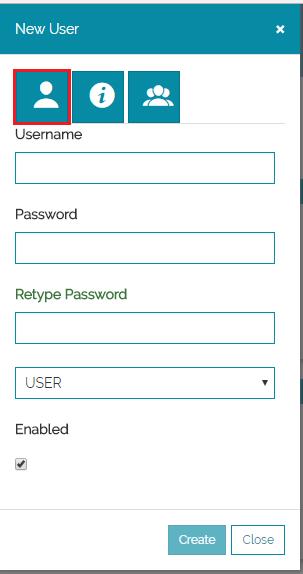
 - Fill the first page of the form by assigning a Username and a Password.
- Select from the list menu to assign a user or an admin role for the user.
-
Finally, Check the flag to enable the user.
Note
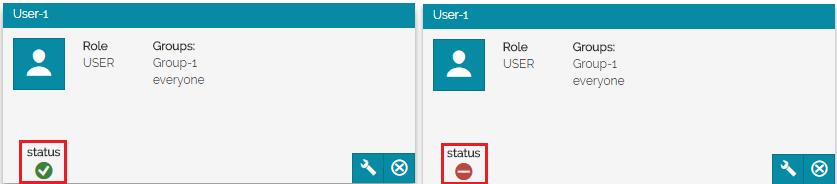
Enabled users will have a green status icon under their profile otherwise will have a red status and will not be able to log in.
-
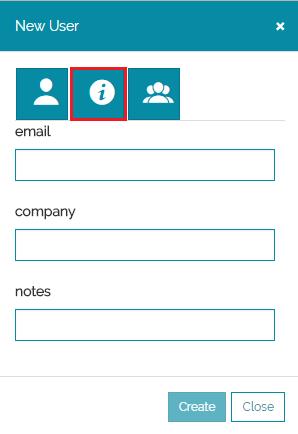
On the second page, Compile the form by providing further informations about the user.
-
On the third page, Select the groups which the users will belong to, then Click on Create.

Editing a User
From the Users page:
-
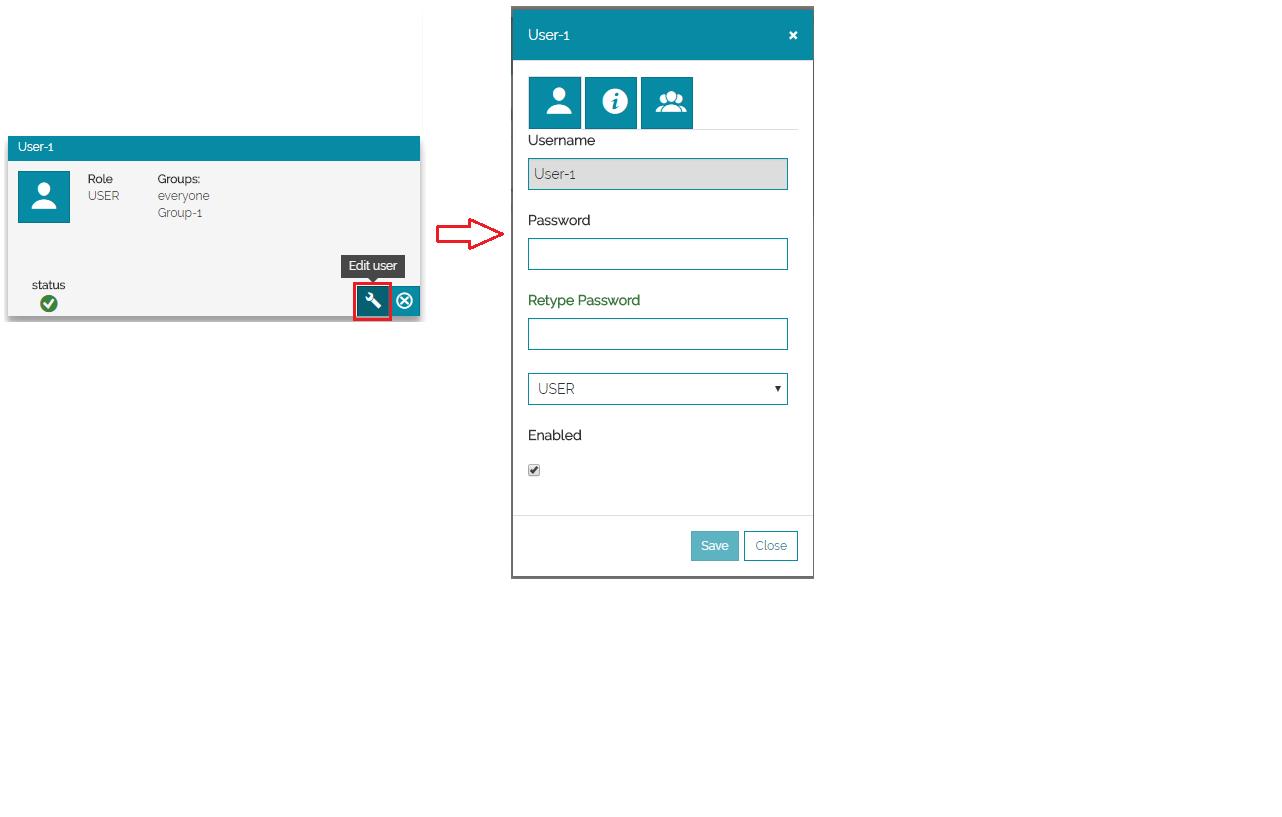
Click on the Settings icon in order to edit a user, you will be redirected to the pop up form where you can change the user details.
-
Or, Click simply on the
 icon to delete the user.